MarketDirect Fulfillment administrators can now enable multi-warehouse picking, which will generate a pick slip for each warehouse containing items in an order. This is ideal for large scale operations with multiple warehouses. Pickers can stay in a single location maximizing their time and picking more orders.
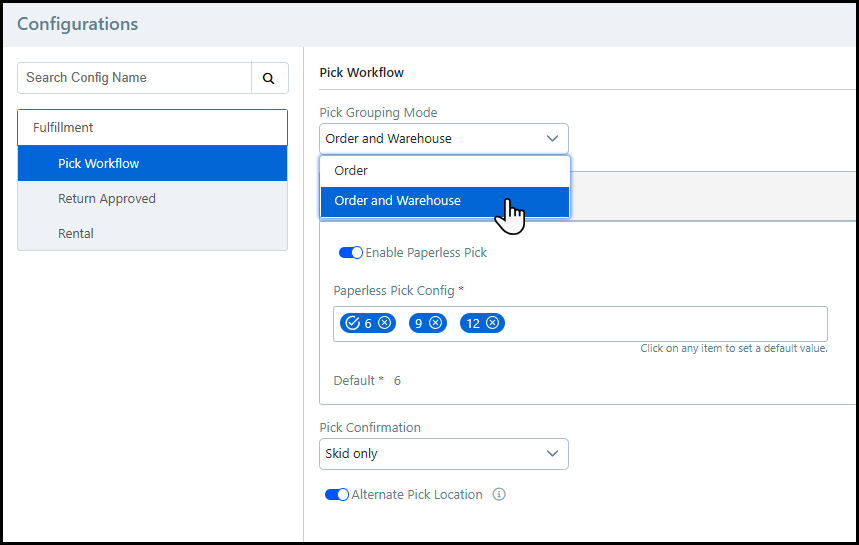
1 Go to Administration > Configurations.
2 Select the Pick Workflow tab.
3 Choose Order and Warehouse from the Pick Grouping Mode drop-down list.
● Order: Fulfillment generates a single pick slip per order.
● Oder and Warehouse: Fulfillment generates a pick slip for each warehouse containing items in the order.
Each pick slip will have a unique Pick ID.
4 Click Save.
This workflow will follow the process of releasing and picking a single multi-warehouse order after it is placed by the buyer on the storefront.
1 Go to Administration > Operator View.
2 Select the line items to release from the Operator View table.
3 Click Release Line Item from the job management task bar.
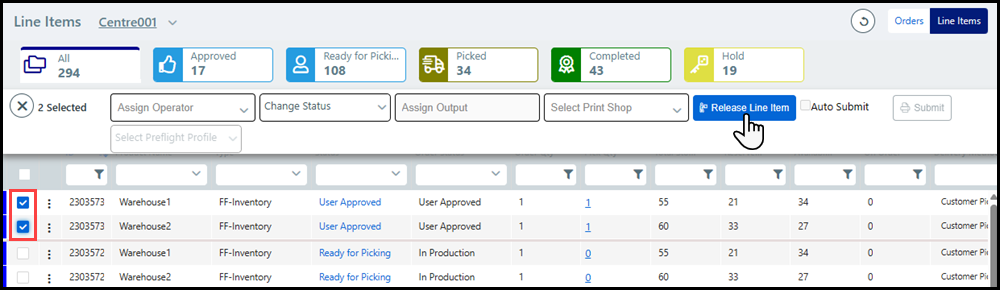
4 Separate pick slips will be generated for each warehouse.
5 Open Mobile Fulfillment.
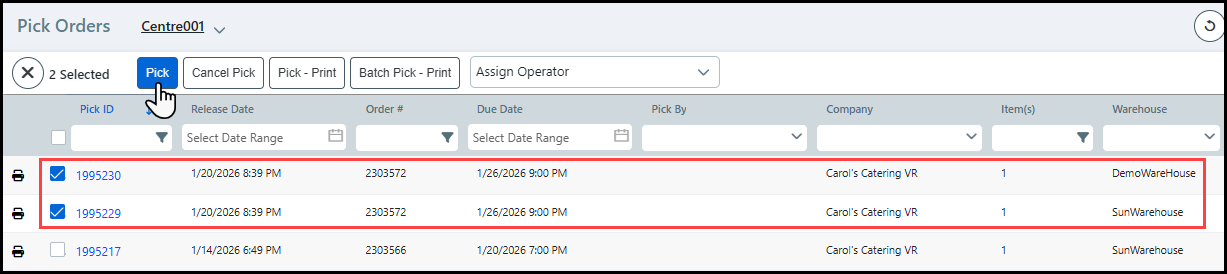
Administrators can confirm the pick from the Pick
Orders page by selecting the line items and clicking Pick
from the quick access menu. Orders with products in different warehouses
will have multiple Pick IDs. Also,
the Warehouse column details the
location of each line item.
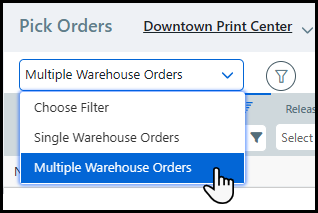
You can also filter the Pick Orders table
for orders where products are in multiple warehouses using the Multiple Warehouse option
in the Choose Filter drop-down list.
6 Choose a warehouse to pick from the Warehouse drop-down list.
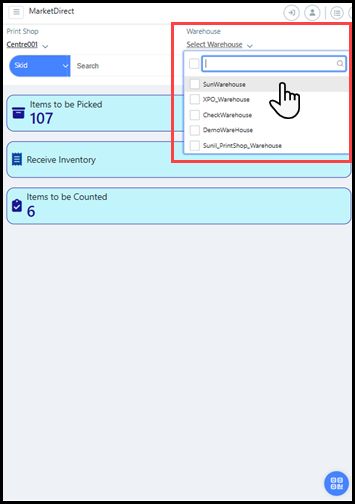
Only the items available in the selected warehouse
will be visible in the Products pick
list.
Pickers can select multiple warehouses. If no warehouses are selected,
then all available items to pick will be visible in the Products
pick list.
You can filter the Products
pick list for multiple warehouse orders
by tapping the Filter icon in the Items
to be Picked section, and choosing
Multiple Warehouse Orders from the Warehouse
Order Type drop-down list on
the Filter Options page.
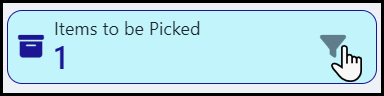
7 Tap Items to be Picked.
8 Locate the item(s) to be picked on the Product pick list and tap Start Pick.
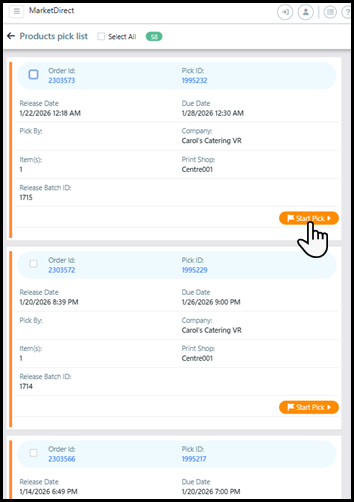
9 Pick the item and tap Complete.
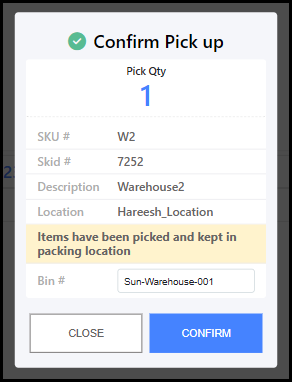
10 Enter the storage location for the picked item(s) into the optional Bin# field.
11 Tap Confirm in the Confirm Pick Up window.
The picker will receive the following message
when there are more items to be picked in the order.
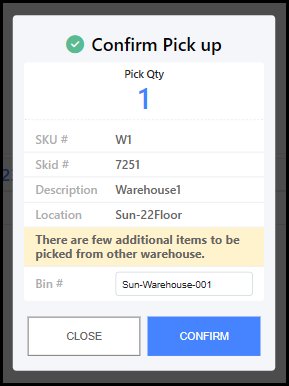
12 Repeat steps 6 through 11 for items located in other warehouses.
The picker will receive the following message
when there are no more items to be picked in the order.